Just like you greet your friends every morning, there are a few things you should check first thing in Google Ads, especially if you’re new to it. At the top of that list is the search terms report. It’s the only place in your account that shows exactly what people typed before your ad appeared, which makes it the only place that tells you exactly where your money went.
In this guide I’ll cover the difference between a keyword and a search term, a real example of budget leaking to the wrong searches, how to open the report, and what to do with what you find in it.
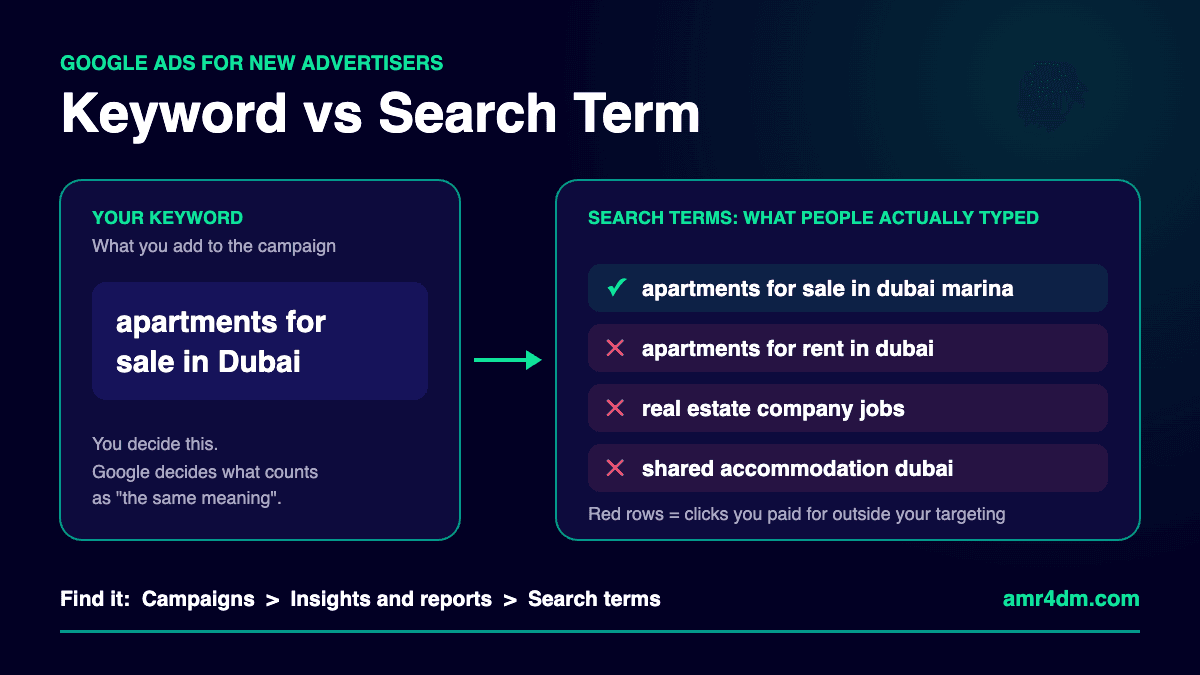
Why “Same Meaning” Is Google’s Call, Not Yours
Keyword match types are looser than most new advertisers expect. Even exact match can show your ad on searches that have the same meaning or the same intent as your keyword, according to Google’s keyword matching options. Phrase match goes wider, and broad match can show your ad on related searches that don’t carry the direct meaning of your keyword at all. I break down all three, with a real example, in my guide to Google Ads match types.
That flexibility helps when it works. The catch: Google decides what counts as “the same meaning.” Your idea of a relevant search and Google’s idea can be very different, and the only way to find out is to check what actually happened.
Keyword vs Search Term: The Difference That Decides Where Your Budget Goes
New advertisers often treat these as the same thing. They’re not:
- Keyword: the word or phrase you add to your campaign to reach people searching for it, or for something Google considers the same meaning or intent.
- Search term: what the person actually typed into Google when your ad showed.
| Keyword | Search term | |
|---|---|---|
| Who writes it | You, the advertiser | The person searching |
| Where you see it | Your campaign’s keyword list | Campaigns > Insights and reports > Search terms |
| What it tells you | Who you meant to reach | Who you actually paid to reach |
| How much you control it | Fully | Indirectly, through match types and negative keywords |
Your keywords are the plan. Your search terms are what really happened. The Google Ads search terms report is where you compare the two.
A Real Example: When “Apartments for Sale in Dubai” Buys the Wrong Clicks
Say you add the keyword apartments for sale in Dubai. A few days later you open the search terms report and find your budget went to searches like these:
| Search term | Who actually clicked | Negatives to add |
|---|---|---|
| apartments for rent in Dubai | A renter, not a buyer | rent, rental, renting |
| real estate company jobs | A job seeker, not a customer | jobs, job, careers |
| shared accommodation Dubai | Someone looking for a room | shared, accommodation |
Every one of those is a click you paid for, completely outside your targeting. You could have the best ad and the best landing page, but if the ad is showing to the wrong person, it’s wasted. Ad relevance and landing page experience, two of the three parts of Google Ads Quality Score, only start to matter once the right person sees your ad.
How to Open the Search Terms Report in Google Ads
- In your Google Ads account, click Campaigns in the left navigation.
- Open Insights and reports, then click Search terms.
- Pick a date range with enough clicks to judge, for example the last 7 or 14 days for a new campaign.
- Add the Keyword column (Columns, then Attributes). It’s hidden by default, and it shows which of your keywords triggered each search term.
- Sort by Cost so the most expensive mistakes sit at the top.
You can view the report for the whole account, one campaign, or a single ad group. Google’s help article on the search terms report explains each column in more detail.
How Often Should You Check It?
For a new account or a new campaign, check it every day or two during the first weeks, while Google is still working out which searches to match you with. Once the list is clean and spend is stable, a weekly review is usually enough. Any time you loosen match types, add keywords, or raise budgets, go back to checking more often.
What to Do With What You Find
Irrelevant search terms: add them as negative keywords
Select the irrelevant terms in the report and add them as negative keywords at the ad group or campaign level. Your ad stops showing for them, and you save that budget going forward. If the same exclusions apply to several campaigns, put them in a negative keyword list and apply the list once instead of repeating the work.
Search terms that convert: add them as keywords (keyword mining)
Found a search term that drove leads or sales but isn’t in your keywords yet? Add it as its own keyword. That gives you control over its bid, its ad copy and its landing page, instead of leaving it to Google’s matching. This is called keyword mining, and once your account has more data it becomes a routine of its own. I cover the full process in my search term mining guide.
Negative Keywords Don’t Work Like Regular Keywords
This is where most new advertisers get caught. Keep these four rules in mind.
1. Negatives don’t match by meaning
Your regular keywords can match searches with the same meaning or intent. Negative keywords can’t. Google’s page on negative keywords states they won’t match close variants or other expansions. Its own example: excluding the broad negative “flowers” blocks “red flowers” but not “red flower”.
2. Synonyms and singular or plural forms are on you
Google only handles casing and misspellings for negatives. Everything else you add yourself. So adding rent as a negative won’t block “rental” or “tenant”. List every variation you want excluded.
3. The report doesn’t show everything
Google leaves out search terms without enough query activity to protect user privacy, so the rows you see won’t always add up to your total spend. For that hidden part, use search terms insights, which groups searches into themes, and write negatives that cover a whole theme rather than a single query.
4. Don’t over-negate
Too many negatives can stop your ads from reaching people who would actually buy. Before you exclude a word, check it isn’t part of searches you want. A negative like studio would also block “studio apartments for sale in Dubai”, which could be a real buyer.
A 10-Minute Search Terms Report Routine
- Open Campaigns > Insights and reports > Search terms and sort by cost.
- Flag every term that doesn’t match what you sell.
- Add them as negatives, including plural forms and synonyms.
- Move proven, converting search terms into their own keywords.
- Repeat every day or two for new campaigns, then weekly once things are stable.
Frequently Asked Questions
What is the difference between a keyword and a search term in Google Ads?
A keyword is the word or phrase you add to your campaign to target searches. A search term is the exact phrase a person typed into Google when your ad showed. One keyword can trigger many different search terms, and some of them may have nothing to do with what you sell.
Where do I find the search terms report in Google Ads?
Go to Campaigns, then Insights and reports, then Search terms. You can view it for the whole account, a single campaign, or a single ad group.
How often should I check the search terms report?
Every day or two for a new campaign during its first weeks, then weekly once spend is stable. Check more often after changing match types, adding keywords, or raising budgets.
Do negative keywords block plurals and synonyms?
No. Negative keywords don’t match close variants, so you need to add plurals and synonyms yourself. They do account for casing and misspellings automatically.
Why are some search terms missing from the report?
Google omits search terms that don’t have enough query activity, to meet its privacy standards. Search terms insights groups some of these low-volume searches into themes without showing the exact queries.
Sources
- About the search terms report, Google Ads Help
- About keyword matching options, Google Ads Help
- About negative keywords, Google Ads Help
- About search terms insights, Google Ads Help
What’s the strangest search term you’ve found spending your budget? Tell me on LinkedIn, and for video breakdowns of Google Ads, subscribe on YouTube.
About the author: Amr Atef is a Dubai-based performance marketing specialist focused on Google Ads and marketing technology, and the builder of BenaAds. Follow him on LinkedIn and YouTube, or read more about Amr.
